Business address quirks
You must use at least Alpha.2 release of teleghosts for business addresses support
If you want a fresh Teleghosts installation to work with your SimpleX business address DISABLE YOUR BUSINESS ADDRESS NOW and follow the fresh install steps.
For existing installations you can selectively upgrade existing chats to
business chats
after installing a new teleghosts version.
Fresh install
We strongly advise to DISABLE YOUR BUSINESS ADDRESS until Teleghosts
Admin bot connects to you. When bot connects to a business address current
SimpleX clients do not display the bot menu so you won’t be able to use
Teleghosts Admin unless you already know all its commands by heart and even
then you won’t see command updates after updating teleghosts.
Follow these steps for the correct setup:
- Make sure your business address is disabled
- Run
teleghosts - Go through Teleghosts Setup Wizard
- Wait till Teleghosts Admin connects to you
- Ensure that you can access Teleghosts Admin menu
- Now you can safely enable your business address
If you cannot access Teleghosts Admin menu carefully follow fixing mistakes section.
Upgrading regular chats to business chats (and vice versa)
You can relatively easily upgrade any chat to a business chat and vice versa
using teleghosts contact management features. The only caveat is you will
loose the chat history in the process.
Let’s assume you want to upgrade a regular chat to a business chat. First, ensure that you have a business address feature enabled in your address settings, then delete the contact you want to upgrade with notification:
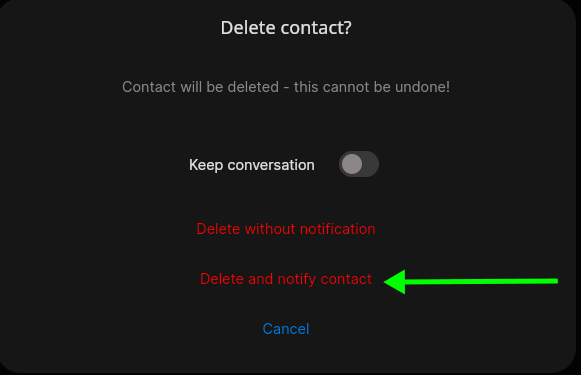
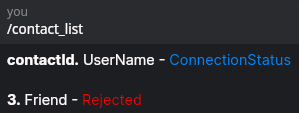
Now go to the Teleghosts admin and run the /contact_list command, you
should see that your contact has the Rejected status.
Warning
Keep in mind that while contact is Rejected bridge will drop all incoming messages from them. It’s not recommended to change the chat type during active correspondence
All is left is to run /contact_reconnect 3(replace 3 with your contact ID)
and the new chat created by teleghosts will be a business chat.
In order to downgrade a business chat to a regular one follow the same steps but disable your business address before reconnecting a contact.
Fixing mistakes
A contact was deleted without notification
Deleting a contact without notification prevents the bridge from recognizing that the contact is rejected. You still won’t receive any messages from the contact but they will be dropped much much later in the process(after all message processing is done) which is suboptimal.
- Open Teleghosts Admin
- Run
/contact_listand find the deleted contact, it will still have the “Connected” status - Run
/contact_block <ID>where<ID>is the ID of the found contact. The contact status will change to “Rejected”. - You can now
/contact_reconnect <ID>to bring the contact back
The admin doesn’t have a menu
This means that the admin is connected to a business address.
- Temporarily disable your business address
- Delete the admin contact with notification
- Restart
teleghostsand wait for the admin to reconnect to you - Now when you see the admin menu you can enable the business address again
The admin was deleted without notification
- Wipe the database
In future teleghosts versions we will introduce the --recover-admin flag
which will trigger a behaviour similar to /contact_reconnect but for the
admin profile.